When a pet goes missing (or a “loose dog followed us home”) need facts and next steps. Local news writing is designed to get that job done. Pair that writing style with a phone-friendly flyer and a single image that includes both the photo, key details, and you can get your message across. That is a writing task that can work well for teaching students in grades 5-6, two of my favorite grades, how to write.
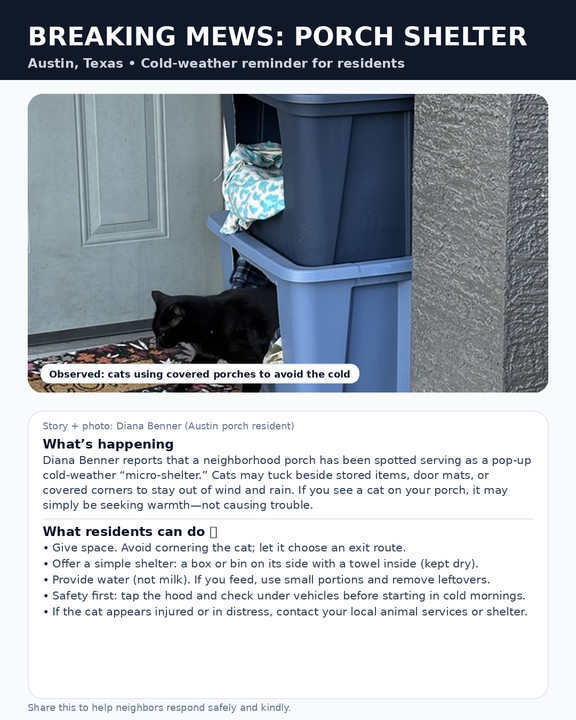
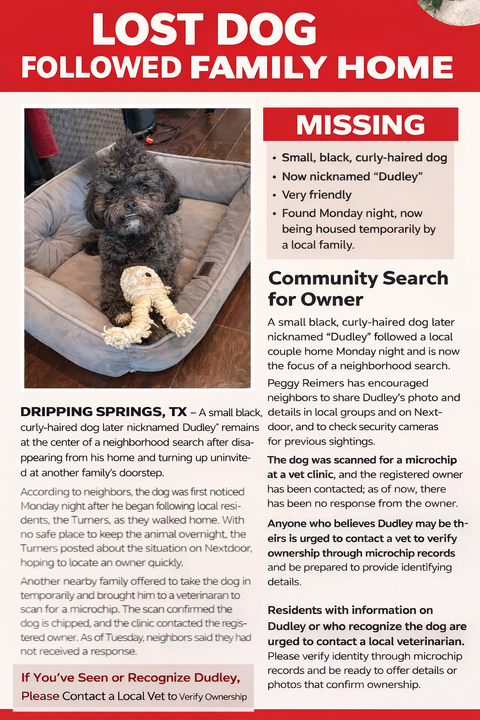
This blog entry suggests encouraging students to ground new learning in real life. That means drafting a short news brief, converting it into flyer copy, and then using a Generative AI image generator to create a polished flyer with a headline, facts, and what to do next. The focus is not “AI magic.” The focus is audience, clarity, structure, and verification.
Why News Writing Makes Pet Flyers Better
Too much text, missing time/location, multiple contact methods, or emotional language can cause a message to fail. So teach students news-style writing that fixes that. Require writing to have these components, at minimum:
- A headline that names the situation (MISSING / FOUND)
- A lede that answers who/what/when/where quickly
- A brief timeline (last seen, found, actions taken)
- A “What you can do” section with one clear action
The purpose of this type of bare-knuckle writing is to get things done, to get action.
The Classroom Setup
Relying on fictional scenarios enables students to craft compelling stories without risking privacy. You can get groups of students (I like to group mine a la Atwell in four desks) to work on scenarios. Give each group a “scenario card” (missing cat, found dog, loose pet seen near a park). Include a short list of facts they must keep consistent.
Scenario card includes:
- Status: Missing / Found / Seen loose
- Description: size, color, markings, collar
- Time window: “between 4:00–6:00 PM”
- Location: neighborhood or cross streets (not an address)
- Behavior: skittish/friendly, approaches people or runs
- Microchip note: scanned/not scanned (optional)
- One contact method: a classroom-safe placeholder (example: “Text the school office”)
- One action for readers: “Check cameras,” “Report sightings,” “Share”
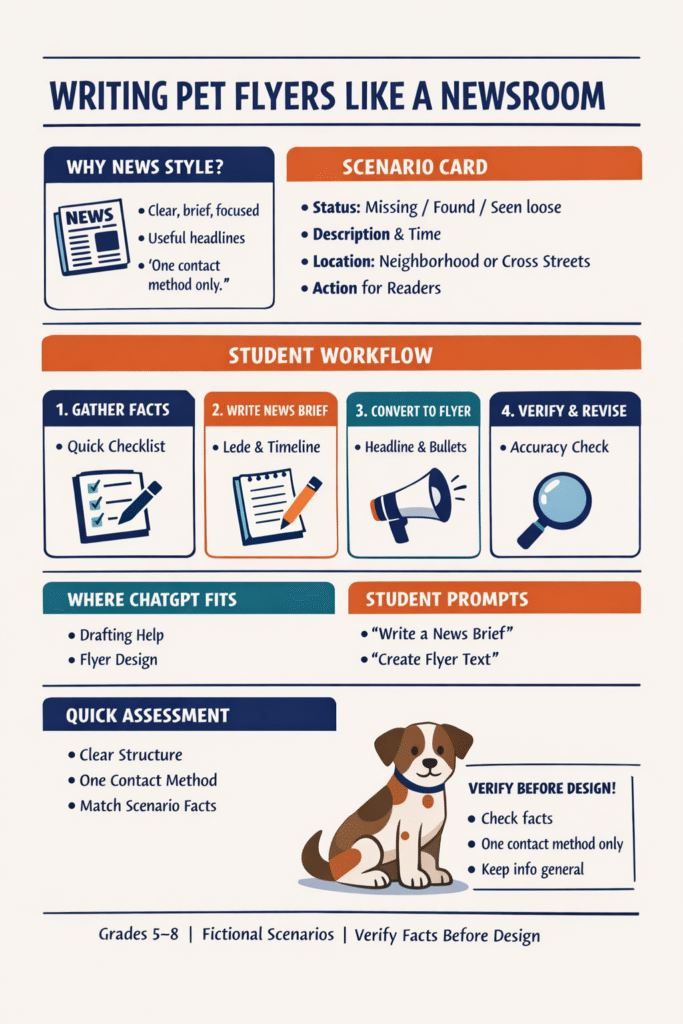
A Workflow Students Can Follow
Here are a few steps you can put to good use in the classroom with students:
Step 1: Gather facts (5–8 minutes)
Students complete a simple fact checklist. This is their “source note.”
Step 2: Write the news brief (15 minutes)
Students produce a 150–220 word local-news-style story:
- Headline
- Lede
- Timeline
- “What you can do”
You might, along with this step, bring in a few flyers and ask students to critique them. Consider having them craft a rubric to assess what worked and what did not while protecting the private data on the flyers (black marker for redactions). Then, after they have it down, they can take a stab at writing the news brief.
Step 3: Convert to flyer copy (10 minutes)
With their news brief in hand, students then reformat the same information into:
- 3–6 word headline
- 5–7 bullet “facts box”
- 40–70 word summary
- One call-to-action + one contact method
You might also rely on the VIVA framework to ensure students have a clear grasp of the facts.
Step 4: Verify and revise (10 minutes)
Before moving on to Gen AI tools, encourage students to do an “accuracy sweep:”
- Is MISSING/FOUND unmistakable?
- Did we make up anything not on the scenario card?
- Is location general (neighborhood/cross streets), not an address?
- Is there one contact method only?
- Is the tone calm and helpful?
Only after verification do students move to design. Provide some news flyer templates that they can create with hand-drawn images and handwriting. Make it fun.
Where Gen AI fits
Whether you are using Google’s Nano Banana Pro or ChatGPT’s Image Generator, Gen AI tools can help in two useful ways:
- Drafting from notes (students still verify)
- Generating the flyer image layout (clean typography, scannable design)
The important classroom message: AI can draft and design, but it cannot be trusted to verify. Students must keep control of facts. What’s more, you can also ask students to draft sample prompts to get the visual result they are seeking from the Gen AI tool. This can be managed via Google Docs or similar shared documents. Student groups submit the writing and the teacher uses the Gen AI tool students have chosen to get the result. That result is then shared back with students.
Prompt Set for Writing
Below, please find a few prompt ideas to facilitate writing. Again, I encourage you to have students write the first two drafts, then ask the Gen AI tool to fine tune it, and/or compare their writing with what the Gen AI tool comes up with.
News brief prompt
Write a short local news brief (150–220 words) about this fictional incident. Include a headline, lede, short timeline, and a “What you can do” section. Keep it factual and calm. Do not include exact addresses. Facts: [paste the scenario facts].
Flyer copy prompt
Create flyer text for a fictional missing/found pet. Format it as: (1) headline (3–6 words), (2) 5–7 bullets, (3) 40–70 word summary, (4) one call-to-action with one contact method. Keep it easy to scan on a phone.
Image Generation Prompts
If you want the final product to be an image students can post (or print), have them “pour” the verified flyer text into an image prompt like the one below. Keep the design requirements strict for readability.
Image generation prompt (copy/paste)
Create a clean, phone-friendly flyer infographic. White background, simple grid layout, high contrast, large readable text.
Title at top: “[MISSING DOG]” or “[FOUND CAT]” (all caps).
Include a “FACTS” box with 5–7 bullets.
Include a short “WHAT TO DO” box with 2–3 bullets.
Include one contact line at bottom: “TEXT: (xxx) xxx-xxxx”.
Use clear sans-serif fonts only. No stylized lettering. No typos.
Include a simple, non-photorealistic pet illustration that matches: [describe pet].
Do not include any address. Use only neighborhood/cross streets: [text].
Use calm, professional wording.If you have a real pet photo, you can use image editing instead of generating a new pet image; but for classroom scenarios, a simple illustration is safer and avoids accidental “look-alike” issues. Consider requiring students to proofread the generated image text. If it contains errors, they must regenerate with corrected text. You can also model branching chats, and if you have access to tools like BoodleBox, consider taking advantage of bot stacking.
A Final Word: Assessment
Since assessment remains an ever-present concern, recall that in the writing workshop, it’s all about the process and steps students have taken to get to this point. It’s not the final product where the assessment happens so much as the significant steps along the journey. Consider grading on each component of these major areas listed below:
- Structure: headline/lede/timeline/next steps
- Clarity: scannable flyer, short bullets, one action
- Accuracy: matches scenario card, no invented details
- Audience + safety: no private info, calm tone, clear contact method
Why News-Style Pet Flyers Work
As a grown-up, I’ve had to put together my own news-style pet flyers. It’s a valuable skill that scales up and teaches authentic purpose-driven writing. The purpose is to get community response for the benefit of saving a life. Students practice informational writing, revision, and media literacy in a format they recognize. The AI piece becomes a controlled design tool, not a shortcut for thinking. This empowers students to learn to write like a newsroom, then publish like a community helper. It’s a powerful skill to learn as journalism fades and Gen AI takes away opportunities to teach that news-style writing can save lives.